
Skip to main content
Looking for help?
Windows Tools
- Eclipse Embedded CDT like:eclipse-embedcpp-2023-09-R-win32-x86_64.zip
- gcc-arm-none-eabi like:gcc-arm-none-eabi-10.3-2021.10-win32.exe
- Jlink driver JLink_Windows_x86_64_V752.exe (Depends on your JLink tools on hand)
Debugging Procedure
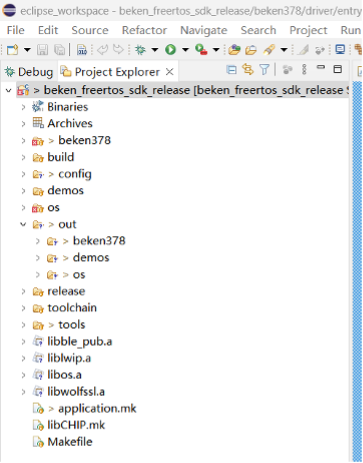
- The project to be debugged imports Eclipse (Optional):
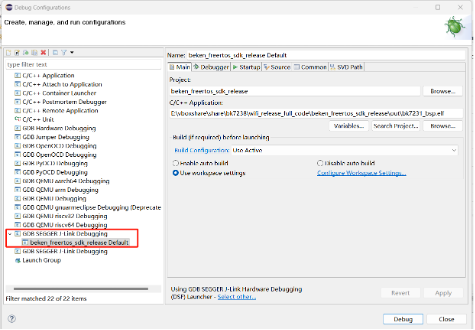
- Click Run on the menu bar -> Debug Configurations…-> double click GDB SEGGER J-Link Debugging, New debug entry will be created:
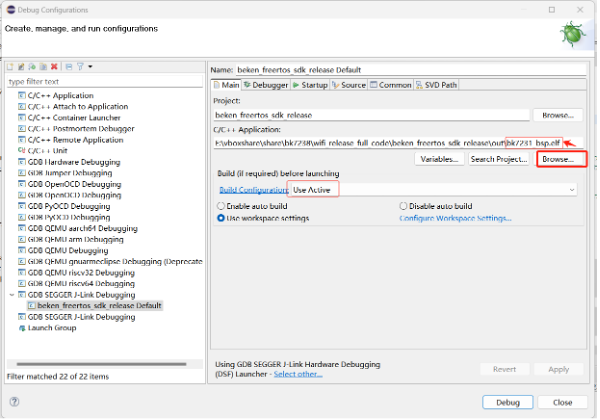
- Configure the “Main” page of the new Debug entry:
- Click the button of “Browse…” button and then select the file with “.elf” which will be debugged.
- Select “Use Active” as the “Build Configuration “
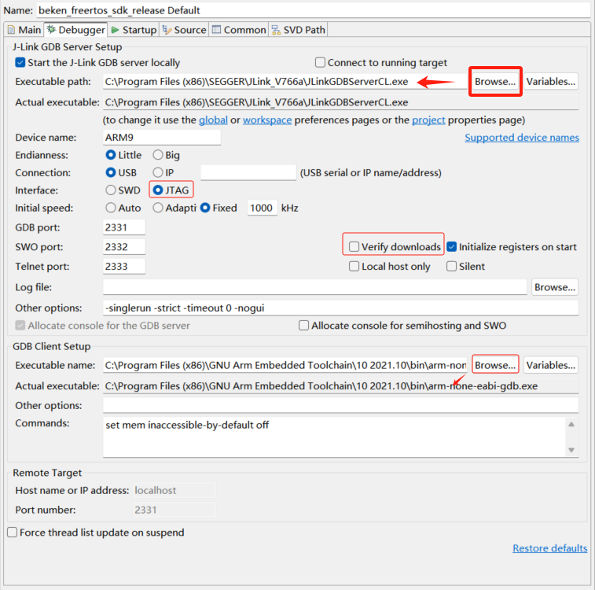
- Configure the “Debugger” page:
- Click the top button of “Browse…” to select the “JLinkGDBServerCL.exe.”
- Set “Device name” as “ARM9.”
- Select “JTAG” as the “Interface”
- Deselect the “Verify downloads.”
- Click the bottom button of “Browse…” to select the “arm-none-eabi-gdb.exe.”
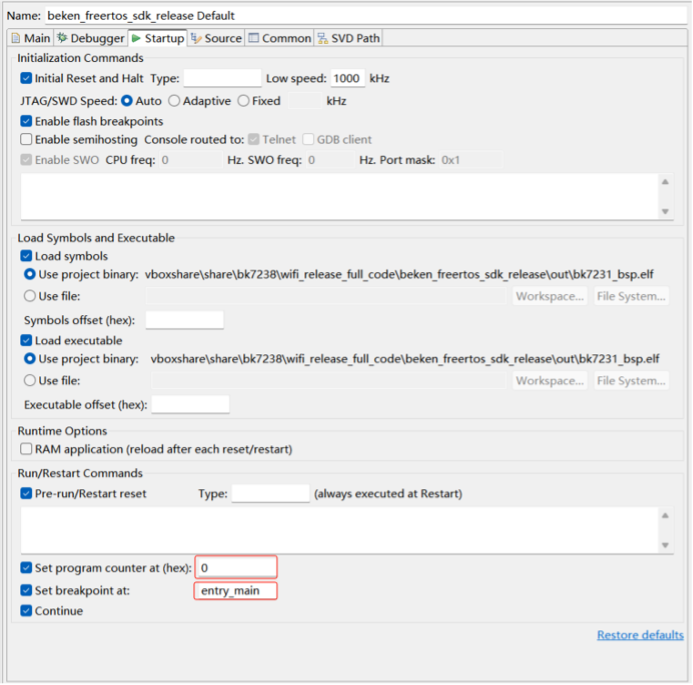
- Configure the “Startup” page:
- Set “Set program counter at (hex)” to 0
- Set a breakpoint at “entry_main.”
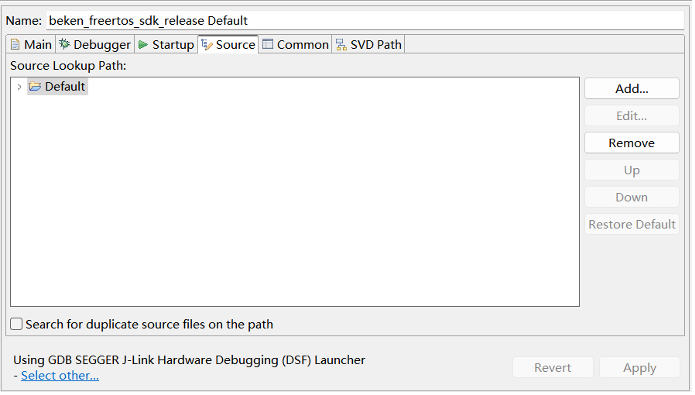
- The “Source” page uses the default configuration:
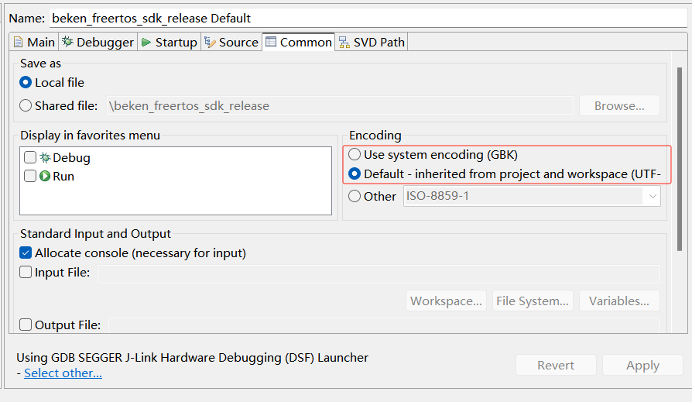
- The “Common” page uses the default configuration:
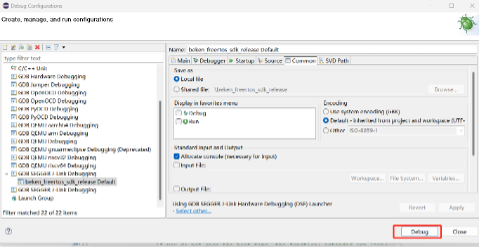
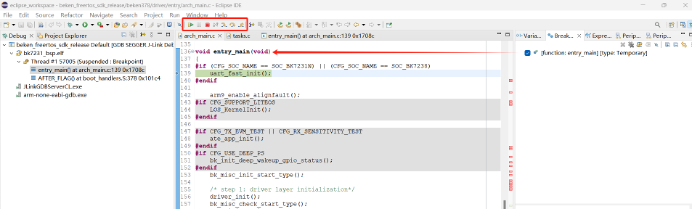
- Click the “Debug” button to enter the Debug mode:
The following interface is displayed after the startup:
- Using buttons like “Step Into”、” Step Over”, 、” Step Return” to debug
The SDK setup guide available at Knowledge Base
*Beken is the official brand name of Bekencorp.